
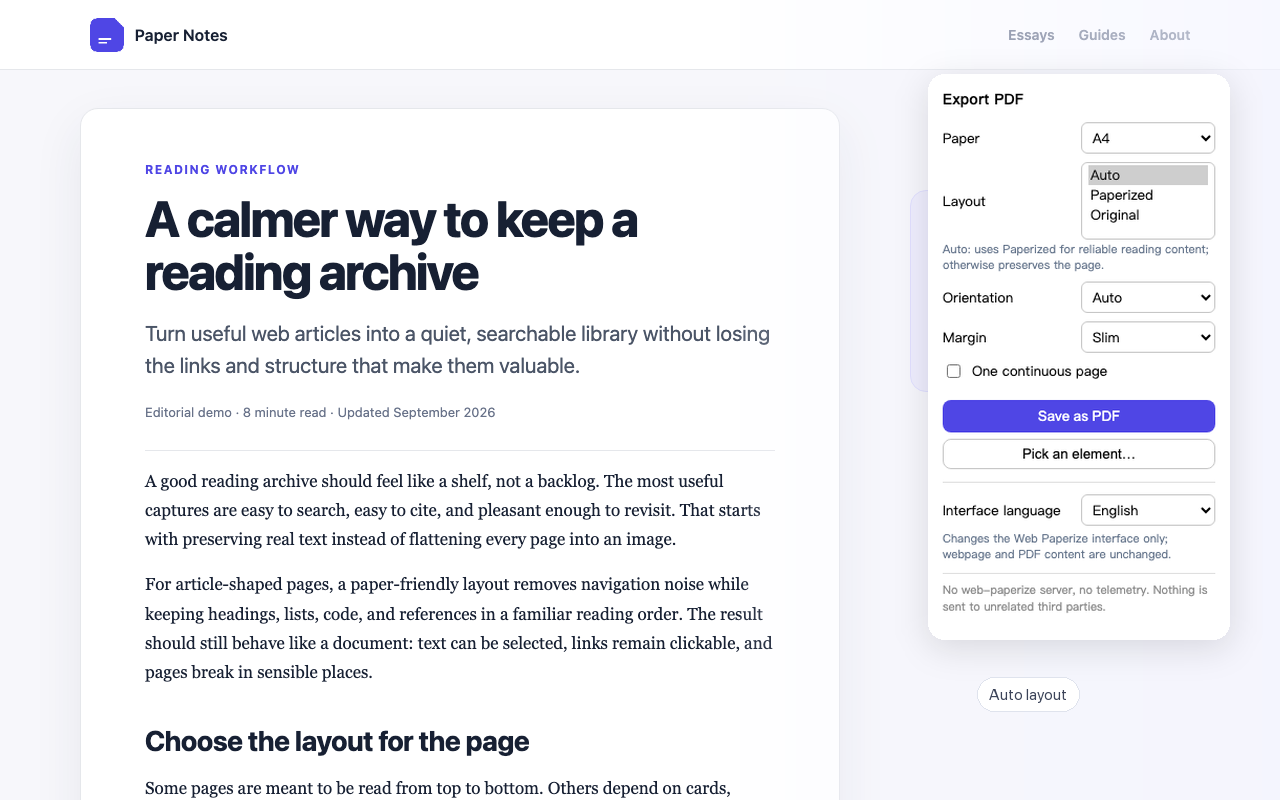
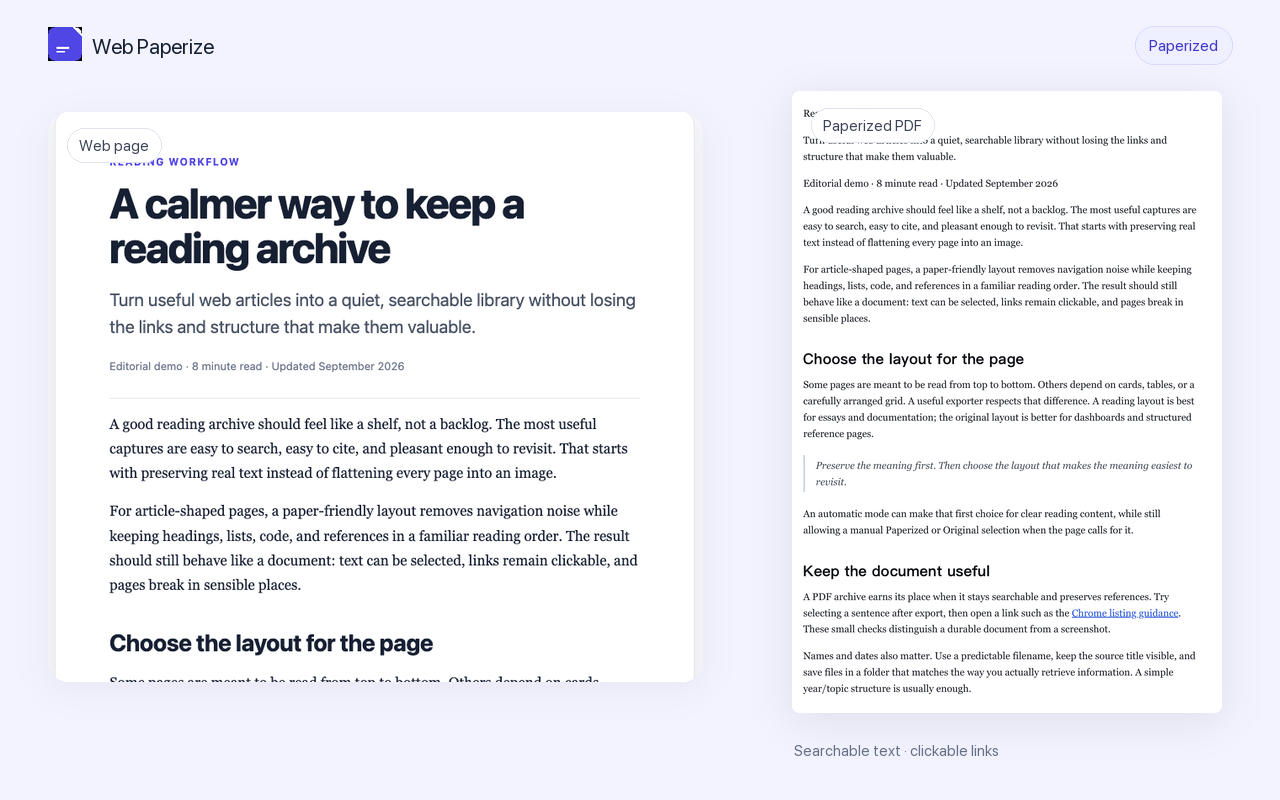
For reading, sharing, and printing. Text stays searchable and links stay clickable. Choose Auto, Paperized, or Original layout.
Local PDF and Markdown export
Save web content as PDF or Markdown.
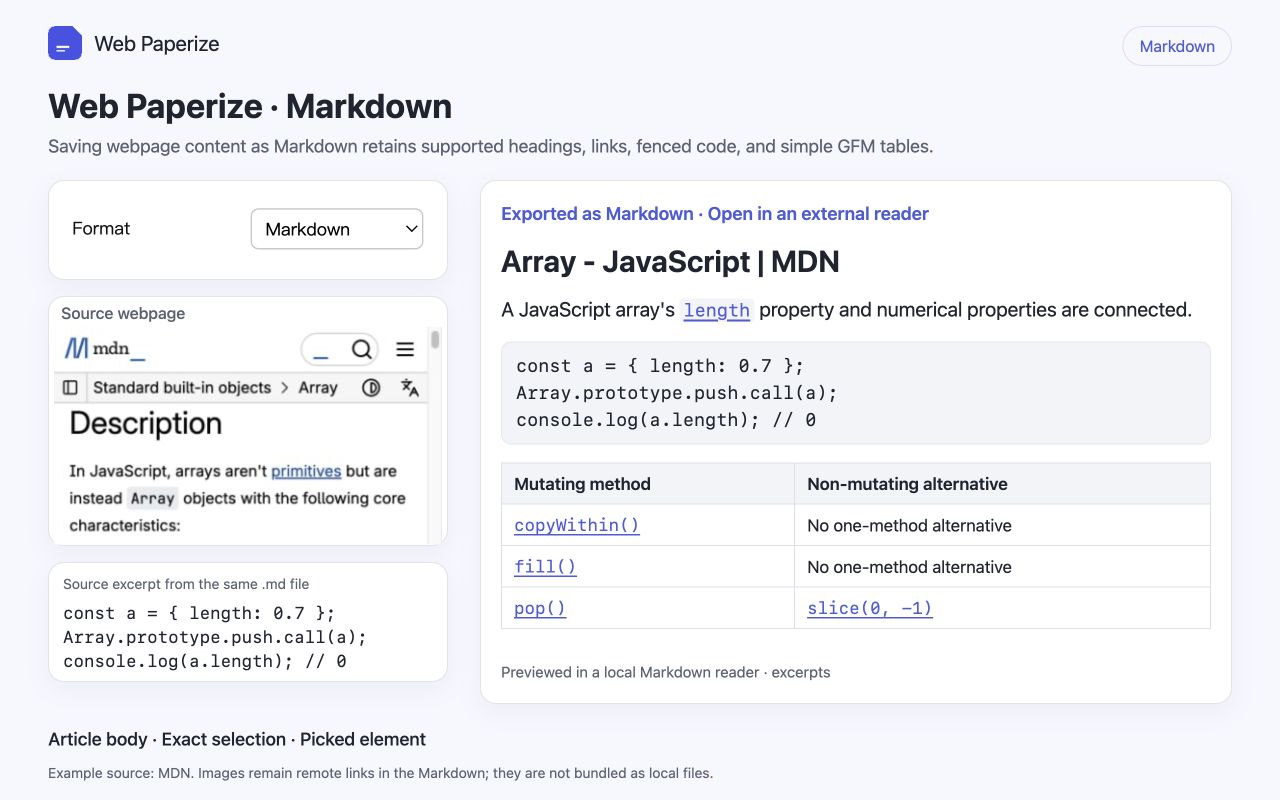
Save an article or a chosen part of a webpage as a PDF or Markdown. PDF is useful for reading and sharing, with searchable text and clickable links. Markdown is useful for notes and further editing.
Install from Chrome Web Store
Requires Chrome 118+
Choose a format
Markdown
For notes and further editing. Save the main article, a selection, or one element with headings, links, tables, and code. Images stay as links.
Complete ChatGPT conversations
Both formats can save the ChatGPT conversation you have open—messages in order, with sources and attachment notes.
Choose a PDF layout
Auto
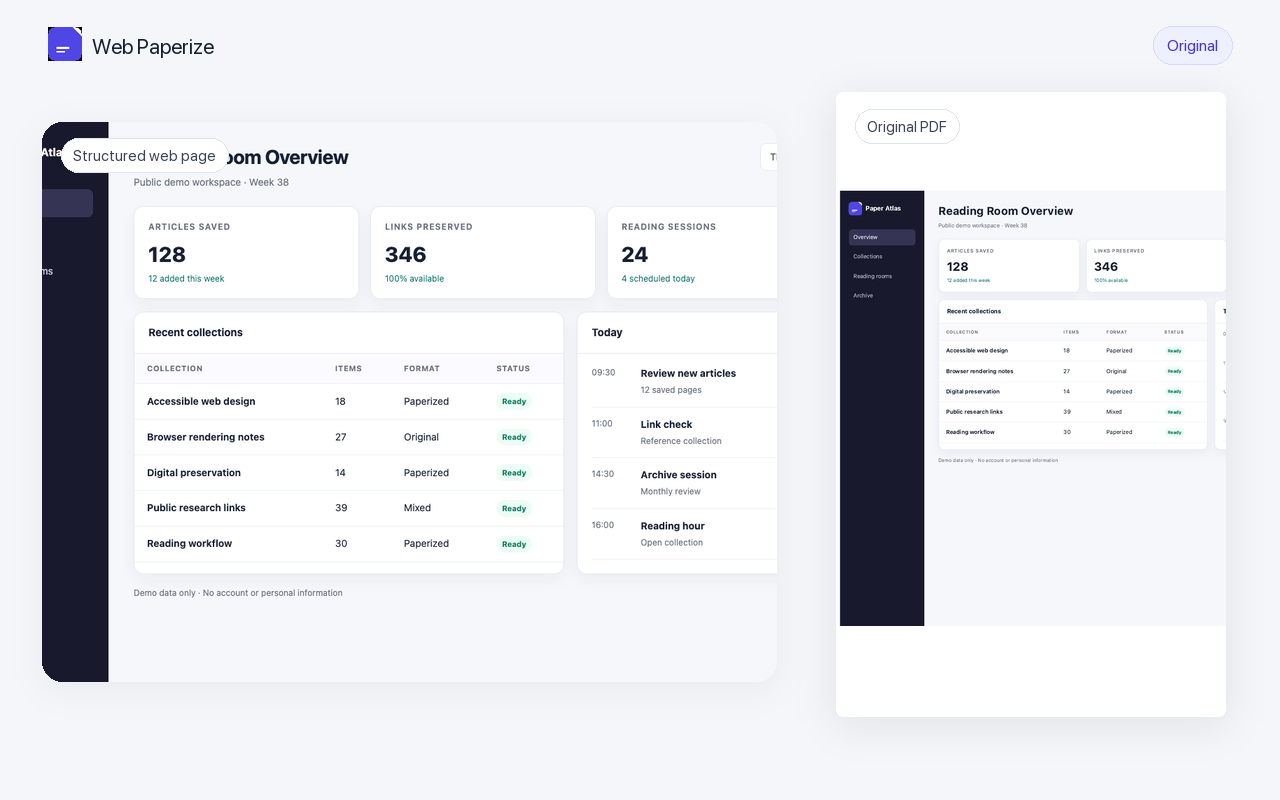
Uses Paperized for an identifiable article body, and Original otherwise.
Paperized
Extracts the article body into a clean reading and printing layout, with portrait orientation and paginated output.
Original
Keeps the webpage's current layout and uses Chrome to render the PDF.
What do you need to save?
Save a webpage as a PDF
Export the full page as a searchable PDF with clickable links.
Save only a selection
Keep the passage or page element you actually need.
Save a ChatGPT conversation
Turn an open conversation into one coherent document.
Print a clean article PDF
Read long articles without navigation and sidebar clutter.
Save a webpage as Markdown
Keep an article, passage, or section as editable text.
Save a ChatGPT conversation as Markdown
Keep a conversation in your notes with its original formatting.
Searchable textSelect, copy, and find words.
Clickable linksKeep useful references connected.
No developer backendOrdinary exports stay in Chrome.
No telemetryNo analytics or browsing monitoring.
The right scope for every export
Keep the whole page—or only what matters.
Start from the toolbar or context menu, then choose the content and output that fit the page.
- Whole pageWeb Paperize prepares lazy-loaded content and inner scroll areas, then removes its own temporary page changes after export. Content or changes loaded by the website itself may remain.
- Picked elementHover, expand or narrow the target, and export one useful section.
- Text selectionSave a selected passage directly from the context menu.
- Paginated or continuousUse standard paper or one long page within Chromium's safe height limit.
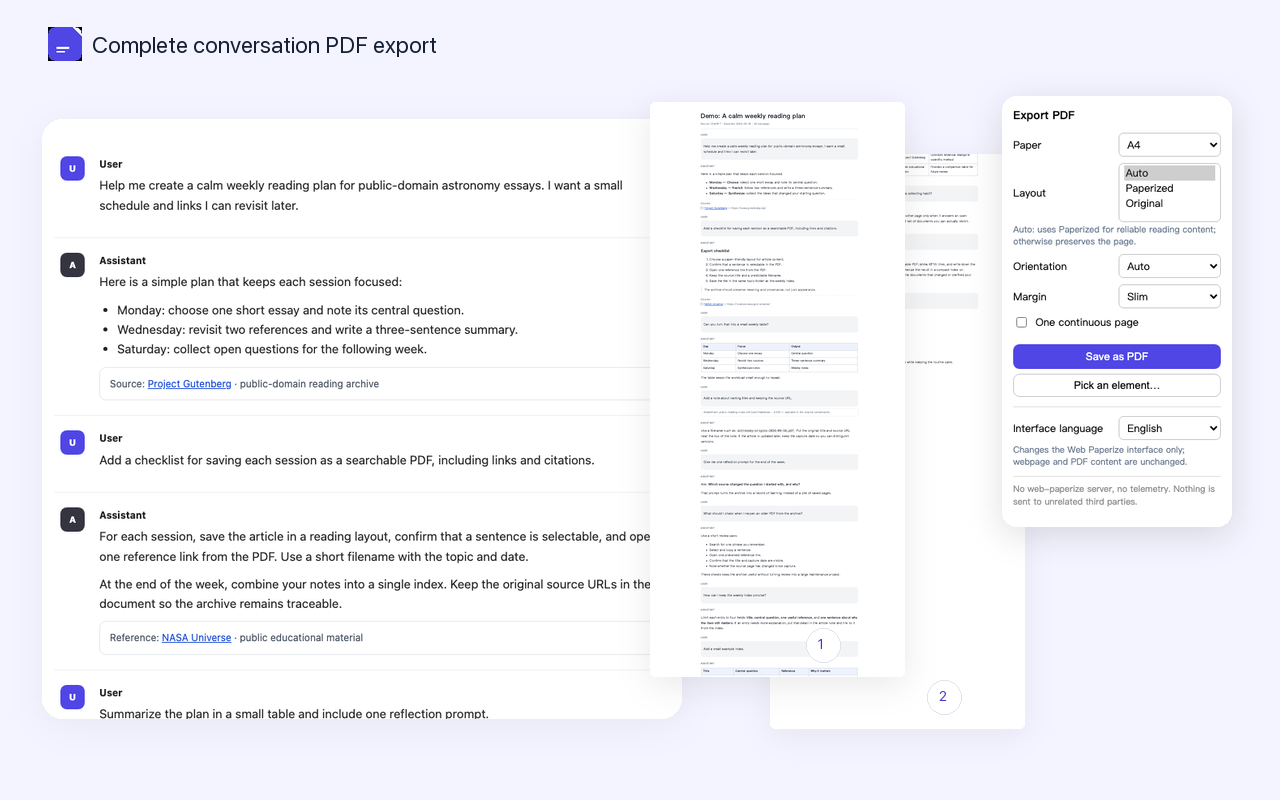
Complete conversation export
Turn an open ChatGPT conversation into one coherent document.
When you choose to export a complete ChatGPT conversation you have open, Web Paperize can include ordered messages, sources, conversation images, and an attachment list when those are present. Both PDF and Markdown exports support this; image limits and other details are in the guide.
- Messages in orderSave the conversation, not just the messages currently visible on screen.
- References preservedKeep citation numbers, source lists, and usable links.
- Direct requestUses your existing ChatGPT login session to request the needed conversation data directly from ChatGPT/OpenAI for that PDF or Markdown export.
Privacy by design
How your data is handled
Ordinary webpages
Page content is processed locally in Chrome and is not sent to a Web Paperize server.
ChatGPT conversations
When you choose to export the complete ChatGPT conversation currently open, Web Paperize uses your existing ChatGPT login session to request that conversation directly from ChatGPT/OpenAI.
Preferences
Output format, paper, layout, margins, filename template, and interface language are stored locally by Chrome.
Interface language
Auto, English, and 简体中文 change Web Paperize's interface—not the webpage or exported content language.
Read the details
Review the full privacy policy, including permissions, retention, and Limited Use commitments.
Compatibility
Built for current desktop Chrome.
Web Paperize requires Chrome 118 or later and is intended for desktop Chrome on macOS, Windows, and Linux. Chrome internal pages and Chrome Web Store pages cannot be exported.
Available on the Chrome Web Store.
Install Web Paperize from the Chrome Web Store.